Slackbot MCP Client: How to Connect to an MCP Server
Learn how to connect Slackbot to an MCP server, choose authentication, test tool calls, and troubleshoot using Wrangle as an example.

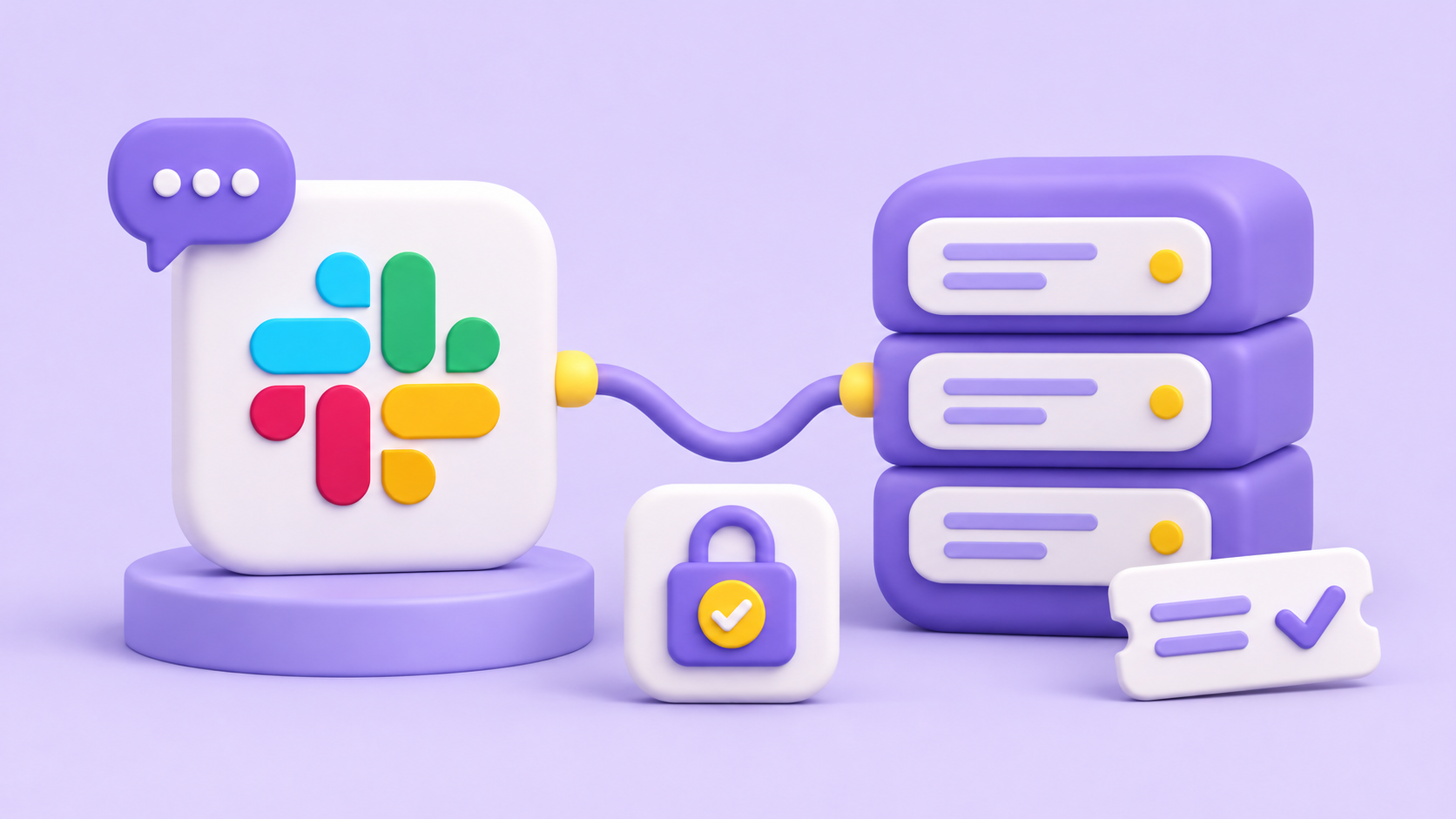
Slackbot can act as an MCP client. That means it can connect to an external MCP server, discover the tools that server exposes, and call them in response to what people type in Slack. The server lives outside Slack and does the work; Slackbot is the client that reaches out to it.
This guide walks you from zero to a working connection: picking an authentication method, connecting the server to Slackbot, either directly or through your own Slack app, testing the integration, and fixing it when it misbehaves. Wrangle's MCP server stands in as the worked example throughout, because it's a live server you can point Slackbot at and see results.
What the Slackbot MCP Client Is
An MCP client connects to MCP servers and invokes their tools. When Slackbot is that client, a prompt inside Slack can trigger a tool call out to a server you've registered, and the server's response comes back into the conversation.
The distinction that matters here is simple. Slackbot is the client, and the MCP server is external to Slack. You aren't building a standalone bot that happens to speak MCP. You're wiring an existing server into the client Slack already ships, so Slack's AI can reach the tools that server exposes.

Choosing an Authentication Method
Authentication is the first decision, and it shapes everything after it. Slack supports four methods for MCP server requests, and the right one depends on how the server handles identity: whether it maps Slack users itself, serves everyone the same responses, or runs its own OAuth.
The two OAuth options differ only in how Slack gets its client credentials. Pick before you configure, because the method determines which fields you fill in.
The options below run in the order you'll weigh them.
1. Slack Identity Auth
Here the server relies on Slack's identity layer rather than running its own login. Slack sends signed requests that include the user's Slack user and team IDs, so there's no separate sign-in. Use it when the server is built to map Slack users to its own accounts and features. It requires the server to verify Slack's request signature before trusting those IDs.
2. No Auth
Some servers expose tools that need no authentication at all. Slackbot connects and calls them without any sign-in step. Use this only when the server's tools are genuinely open, such as a read-only public data source where there's nothing to protect. It requires nothing beyond the server's URL.
3. Dynamic Client Registration
Dynamic Client Registration lets Slack register itself as an OAuth client with the server automatically, rather than you creating credentials by hand first. You provide the server's URL, and each user still signs in through the server's own OAuth flow when they connect. Use it when the server supports the registration flow, as Wrangle's does. It requires the server to implement dynamic client registration.
4. Manual OAuth
Manual OAuth is the fallback when automatic registration isn't available. You register an OAuth client with the provider yourself, using Slack's callback URL as the redirect URI, then enter the client ID, client secret, authorization URL, and token URL in the Slack app configuration.
Use it when the server speaks OAuth but doesn't support dynamic registration. Each user then signs in through the provider's OAuth flow when they connect.
Connecting the MCP Server to Slackbot
There are two ways to connect a server. If you're using an existing server like Wrangle's, add it directly from Slackbot. If you maintain an MCP server and want to package it as a Slack app, register it in your own app instead. For the Wrangle example, you'll also need a Wrangle workspace on the Scale plan or a trial, since the Wrangle MCP server is part of that plan.
Option 1: Add the Server Directly in Slackbot
This is the simpler route, and it's the one Wrangle's MCP setup guide walks through. A Slack admin approves the server once, then everyone in your Slack org connects with their own account.
- In Slack, open Slackbot and go to Apps.
- Add a custom MCP server, paste the server URL, and click Continue. For Wrangle, that's https://slack.wrangle.io/mcp.
- Enter an app name, such as Wrangle.
- Set Authentication to the method you chose above. For Wrangle, choose Dynamic Client Registration, leave Identity URL and Account identifier blank, and click Continue.
- Under the tool review screen, click Connect. Sign in to Wrangle in the browser window that opens, review the access requested, and click Approve.
- Back in Slack, click Submit to send the server to your Slack admin for approval.
Once an admin approves it, everyone else connects the same way: open Slackbot, go to Apps, find the server, click Connect, and approve access in the browser. Each connection uses that person's own permissions, so with Wrangle, Slackbot can only see and change what that user can in Wrangle.
Option 2: Register the Server in Your Own Slack App
Use this route if you maintain the MCP server and want it installed as a Slack app. Work through the steps in order, because later ones depend on earlier ones.
- Go to your app at api.slack.com/apps, creating one if you need to, and under Features, open MCP Servers.
- Click Get Started, give the server a name, and enter its HTTPS endpoint. For Wrangle, that's https://slack.wrangle.io/mcp. Slack requires MCP servers to use the Streamable HTTP transport, which Wrangle's server supports.
- Set the auth type to the method you chose above and fill in what it needs. Wrangle supports Dynamic Client Registration, so its optional Identity URL and Account Identifier fields can stay blank. Manual OAuth needs your client ID, client secret, authorization URL, and token URL, while Slack identity auth and no auth need nothing extra.
- Save the server. Adding it through App Settings adds the mcp:connect bot scope to your app automatically. If you edit the app manifest instead, add mcp:connect under oauth_config yourself, along with an mcp_servers entry for the server.
- Install the app to your workspace from OAuth & Permissions, or reinstall it if it was already installed, so the new scope and server take effect.
- In Slack, open a DM with Slackbot, click Apps in the Slackbot toolbar, and add the app. Each user connects for themselves, and a user can have up to five MCP servers active at a time.
- Authorize access. With an OAuth method like Wrangle's, a browser window opens to the provider; sign in, review the access requested, and click Approve. The connection then uses that person's own permissions, so with Wrangle, Slackbot can only see and change what that user can in Wrangle.
With the app installed and connected, Slackbot can discover and call the server's tools.
Testing the Connection
A saved configuration isn't a working one until you've watched Slackbot detect the tools, call one, and surface the result. Run these checks in sequence.
1. Check That Slackbot Detects Your Tool
Start by confirming Slackbot sees the tools the server exposes. Ask Slackbot what tools are available from the app, or click Manage next to the app on the Integrations tab to see its tools and their permissions. A working result is Slackbot listing the tools from your server by name.
If nothing from your server shows up, the connection isn't live yet, and the Troubleshooting section is where to go.
2. Have Slackbot Use a Tool
Next, prompt Slackbot to call one of the tools. Phrase the request in plain language that maps to what the tool does, and let Slackbot pick and invoke it. For a third-party server, Slackbot asks the user to authorize each tool call, read or write, with Allow once, Always allow, or Deny, and users can change those choices later in the MCP config dialog.
A working result is Slackbot calling the tool and returning its response in your Slackbot conversation. That round trip, prompt to call to answer, is the core of the integration.
3. Enrich Tool Responses
By default, tool results come back as plain text. To make them easier to act on, the MCP server itself can return rich responses: Block Kit layouts that render as native Slack messages, or interactive HTML and JavaScript through MCP Apps. This is built on the server side by whoever maintains the MCP server, so it isn't something you get by prompting Slackbot to reformat its answer.
Troubleshooting
When Slackbot doesn't show your server or its tools, check the app first. It needs the mcp:connect bot scope and an MCP server configured in App Settings or the app manifest, and it has to be reinstalled after either changes.
Then confirm the server URL is correct, that the server uses Streamable HTTP, and that the user finished the OAuth sign-in, since an unfinished or rejected sign-in leaves the tools invisible. The Logs tab under MCP Servers in App Settings shows connection and tool-call activity from app collaborators.
When a tool call fails rather than the tool going undetected, the auth method is the usual suspect. Verify that the credentials or provider you configured still grant access, and that the user triggering the call is authorized through whichever method you chose.
If detection works but calls don't, the connection is live and the problem sits in authorization or the request itself. If Slackbot discovers your tools but asks for confirmation on every call or doesn't invoke them, the tools may be missing read-only classification, so Slack treats them as writes.
With Wrangle specifically, a message that the feature isn't enabled means the Wrangle workspace isn't on the Scale plan, and a permission error means the connected user can't edit that ticket in Wrangle.
What You Can Build Once It's Connected
A single connected server is useful. The real shift is multiplayer: Slackbot orchestrating across several servers at once, so one prompt can reach the right tool wherever it lives. Here's the kind of thing teams reach for by category.
For product and development, teams wire in the servers behind their issue trackers and build systems, so a question about a ticket's status or a release gets answered without anyone leaving Slack.
For document and content management, connecting the servers behind your knowledge bases and document stores lets Slackbot pull up or update content without anyone leaving Slack to hunt for the file.
For business operations and agreements, servers tied to approvals, contracts, and internal processes let Slackbot surface where a request stands and move routine operational work along in the conversation.
For visual collaboration and data analytics, connecting the servers behind your boards and analytics tools lets Slackbot fetch a chart or a metric on demand, so a data question gets a data answer without leaving Slack.
Across all of these, enterprise governance matters. Each connection is a path into a system, so the authentication method you choose and the access each server grants are security decisions, not just setup steps.
Worked Example: Creating a Wrangle Ticket from Slackbot
Here's one Wrangle tool call from prompt to ticket. It uses create_ticket, one of the tools the Wrangle MCP server exposes alongside tools for searching tickets, reading a ticket's conversation, and pulling ticket and agent metrics.
Prompt: In a DM with Slackbot, a user types, "Using Wrangle, create a ticket in IT for Sam: new hire laptop needed by Monday."
Tool call: Slackbot first calls get_inboxes to find the IT inbox and its intake form fields, then prepares a create_ticket call. Because Wrangle is a third-party server, Slackbot asks the user to approve the call before it runs, unless they've already chosen Always allow for that tool.
Result: Wrangle creates the ticket as that user, with Sam as the requester, and posts it to the IT inbox's Slack channel, where the IT team works it like any other Wrangle ticket. Tickets created through MCP skip Wrangle's AI deflection, so the request is always logged. Slackbot returns the result in the DM.
Follow-up: The user asks, "Using Wrangle, assign that ticket to Alex and move it to In Progress." Slackbot calls update_ticket, the ticket's assignee and status change in Wrangle, and the ticket's history records that the change came through MCP.
MCP isn't limited to working inside Wrangle. An assistant connected to Wrangle and to other tools can act across them in the same conversation, for example reviewing an access request in Wrangle, granting access in Okta, and updating the ticket when the work is done.
For actions that should happen automatically whenever a ticket changes, Wrangle's API and webhooks handle it: a webhook can notify an asset management system or HRIS when a ticket's status, assignment, or priority changes, and the API lets those systems create and update tickets, start workflows, and post replies back to a ticket.
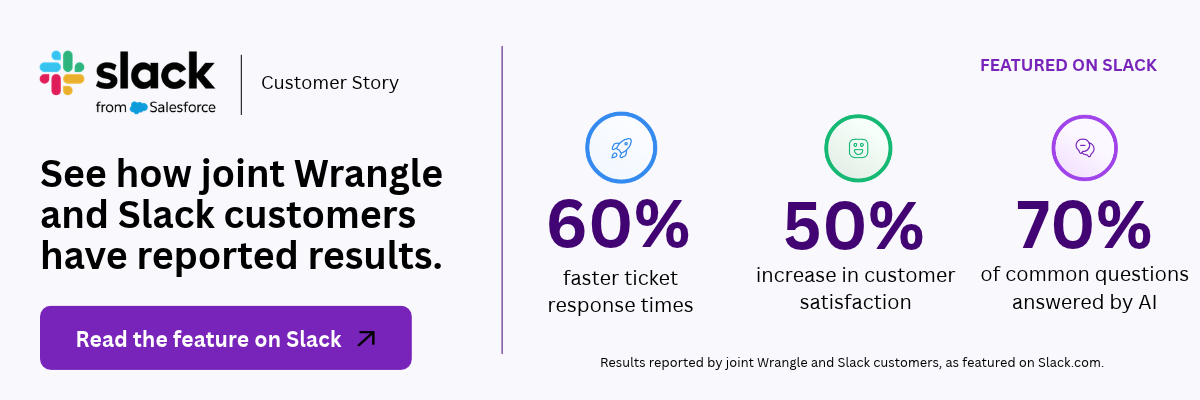
For the full tool list and setup options, see the Wrangle MCP setup guide and Wrangle's MCP announcement. Slack has also featured Wrangle in a customer story on how it built conversational ticketing on Slack's platform.
Wrangle learns from your tickets and knowledge base to handleup to 75% of Slack questions automatically.


4.7 Average rating


Turn Slack into a productivity powerhouse with Wrangle
Create a scalable helpdesk in Slack. Automatically turn messages into trackable tickets and provide faster, more transparent service to your colleagues and customers with Wrangle — Try it free!
Wrangle learns from your tickets and knowledge base to handleup to 75% of Slack questions automatically.
4.7 Average rating